Showing posts with label Hidden tricks. Show all posts

Sunday, 12 December 2010

Move or remove the close tab button

you can easily remove or move close tab button. Just go through dis..

Type “about:config” into the address bar and hit return. Type “browser.tabs.closeButtons” in the filter field, and change the following settings (double-click on them to change them):

Edit the value according to your preference.

Here are the meaning of these values:

0: Display a close button on the active tab only
1: (Default) Display close buttons on all tabs
2: Don’t display any close buttons
3: Display a single close button at the end of the tab bar (Firefox 1.x behavior)

Manage Your Startup Programs

Startup Programs are the Programs that runs automatically on windows logon. Microsoft leaves no way to clean up this list, but here is a way to manage them..


1. Open MSconfig and click on the startup items tab

2. Open Regedit and naviate to

HKLM/Software/Microsoft/Sharedtools/MSconfig/startupreg

3. Compare the list of registry keys under startup reg with their counterparts in
msconfig.

4. Delete the keys which are no longer valid.

5. You've cleaned up msconfig.

Protect MSOffice document with Password

You can protect your document by applying password so that unauthorized person can not display as well as modify your document.
Here are the steps:

1). Open any Office Documents.
2). Click File and Select Save As.
3). Now click Tools in that dialouge box.


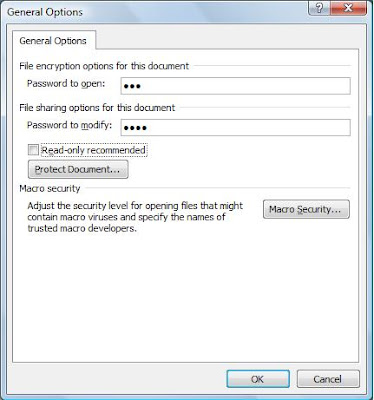
4). Here click on General Option.
5). Now give the passwords to open and to modify.


6). click OK.
7). After that re-enter those passwords to confirm them.
8). Click Save button of Save As dialog box.Its done.

Now your document is password protected, noone can read or modify it without that password. You can use this trick to maintain and to protect your personal dairy from others..

Lock your PC with USB Drive - Cool Computer Tricks

Here is a cool trick to lock your PC with USB drive. It can be done with the help of a free program called USB PC Lock Pro. It works on Windows only and needs to be installed on the computer and not on the USB flash drive.


USB PC Lock Pro Turns any USB Flash Drive into a key that prevents unauthorized people from using your computer. USB pc Lock will automatically lock your computer and perform other actions when you step away from it.

It Stops streaming media traffic, Mute audio and Start/Stop event logger.

This program is freely available on internet. You can download it from anywhere and have to installed it on your computer.

Click Here To download USB PC Lock Pro

Simple tips to select Text quickly in MS word

Below are some tips to slect text quicky in MS Word, this is really very useful and very handy. This is a great feature of microsoft word and most of the users are unknown of this selecting style. Here are instructions to selct text:


Select a word:
Double click on any part of the word.

Select a line:
Click the left margin next to the line.

Select a sentence:
Hold down the CTRL key, then click anywhere in the sentence.

Select a paragraph:
Triple click any word within the paragraph.

Select the whole document:
Triple click in the left margin, or hold down the CTRL key, then click anywhere in the left margin. Yet another method you can use is to hold down the CTRL key, then press the letter A.

Make a vertical text selection:
Hold down the ALT key, then drag the mouse up.

Add Run command to start menu in Vista

Window vista does not have run command in start menu. Run command is great feature of window xp. So those who upgrade from window xp to window vista may miss run command.
Here are steps to include run command in window vista's Start menu.

Follow given steps to add run command to start menu:
1). Right click on taskbar and go to properties.
2). Click on start menu tab.
3). In start menu properties, click on customize button.

4). Scroll down to run command and click on check box of run command.

5). Click ok.
Its done.
Check start menu, It should include run command as shown in figure.

Speed up your computer by cleaning RAM using notepad

If your computer become slow, when you are working with many programs. It may be due to RAM because at that time RAM is full of remaining progress pieces which you are working with and you do not need them any more. So, if you can erase or delete those unnecessary pieces of information, your computer RAM will be cleaned and your computer will be speed up.


Cleaning RAM is very easy task here are steps for it, just follow them:

1). Open notepad.

2). Type FreeMem=Space(64000000).

3). Save file with name "CleanRAM.vbs".

4). Close it and run the file.

It will free memory in RAM, if you want to free more memory than you can write following command in notepad instead of what given in step 2.

FreeMem= (256000000) for 256 mb
FreeMem= (128000000) for 128 mb
FreeMem= (72000000) for 72 mb
FreeMem= (64000000) for 64 mb
FreeMem= (32000000) for 32 mb
FreeMem= (24000000) for 24 mb

Make sure that you don't select the memory that is larger than your memory capacity.

Visit Sites which required Registration without Registration

Nowadays many free websites have registration walls, user can't acesss data without registration. User have to registered themselve first on a free Web site just to read some news or view some information. This registration task is very annoying, it is also a potential source of email.


Now you can get access to protected content without signing up for an account. For this you have to visit Bugmenot.


Bugmenot is an internet service that provides usernmes and passwords to let Internet users bypass mandatory free registration on websites.

you just need to type URL of websites website that you’d like to access in the URL box on front page of bugmenot. Click on get Login. BugMeNot then will return a list of user names and passwords along with their accuracy percentage.

you can easily get access to that website by using these logins and passwords.

Multiple Gmail Id for 1 account - Cool Computer trick

Wanna have multiple gmail id?? One way to get multiple ids is to create multiple account, But if you dont want to create multiple account as for this you have to login in each account seperately to view all mails. Here is trick which gives you multiple id but only 1 account.
You can have multiple email address of your existing gmail account just add + symbol after your user name then add anything followed by @gmail.com.
Suppose xyz@gmail.com is a gmail id, now if anyone send mail to xyz+123@gmail.com or to xyz+pqr@gmail.com or any email address having username (in this case username is xyz) followed by + symbol then any word and then gmail.com.
When someone send email at this address it first goes to gmail server where it recognize it as xyz@gmail.com and avoids “+” sign and anything after it. So it sends all mails to xyz.gmail.com

Trick to track Email Id at Orkut -Cool Trick

Orkut has privacy settings, by using them you can hide your email ids from unknown persons.
Here are trick to get email id of a person who are not your friend and his/her email id is not visible on Orkut. Just follow these steps:

1). Go to any members profile whose email id you want to find and who is not your friend.

2). On his/her profile, select ignore user option which is on left side below picture.

3). Now log into chart Messenger (Google Talk or yahoo messenger).

4). Go to Settings and then Blocked.
It will display the list of all blocked or ignored person, so it will also include id of that person.

Its done..

Maintain Notes in gmail - Cool gmail Trick

Some email providers provide a Notes function which let you maintain a list of notes. Notes can be anything from Web site links to random thoughts or some reminder. Gmail doesn't offer this feature, but you can impement this feature by using some of its other features. Here are steps to set up a very nice, easy to maintain group of notes...

1). Create a Contact with a Name of Notes and an Email Address of username+Notes@gmail.com. Here username is your username of Gmail and notes is this contach name.
2). Create a new Label named Notes.
3). Create a Filter to add any email addressed to username+Notes@gmail.com to the Notes Label .
4). Check the Skip the Inbox (Archive it) checkbox.
Its done.
Now whenever you email yourself from an email account other than your own Gmail account, address the email to username+Notes@gmail.com, then the message arrives in your Gmail account, it will automatically be archived into your Notes Label view, bypassing the Inbox.
So You will have all important web links updates etc at one place in easy and organized manner.

Change Google logo text

You can Change google logo text and can place your name in place of google. You can also set that page as home page of your browser, so that whenever you open browser it opens a google's search engines webpage withyour name.


Here are steps:

1). There are lots of websites which provides you to change Google logo text. One of them is http://www.blingmysearch.com/ .
2). Open above link, copy and paste above address in adress bar of browser or click here.
3). Here enter your name or any text which you want to set in place of google.

4). Select style of text by selecting one of the give designs
5). Click on create.
6). Set this webpage as your home page.

You can also select theme for your homepage by using this site.

View streets through Google Street View

Now you can view streets of US without going US, you can visit there while sitting in front of your computer.

This is possible now with the help of Google Street View, a new service by google by which you can view the streets of some areas. Till now this service is only available to few countries like us and not for India, most likely Google will soon add this feature for other countries. This feature is a very innovative but on the other hand, it could be also used for bad reasons.

Here are some instructions to use Stret View
Zoom To zoom closer into the earth press the + button in the navigation bar on the left of the screen. You can also zoom closer by double left clicking your mouse, or moving the scroll wheel forward.

Tilting Using your keyboard, simultaneously hold down the Shift key and the Up arrow to tilt down or the Down arrow to tilt up. To tilt, you can also select Shift and use the scroll wheel on your mouse. You will be able to see 3D buildings, structures and terrain as shown below.

Search, Customize and Send Your View Enter any place in the Search bar, and you will fly to your point of interest. Use the navigation controls to customize your view, zooming and tilting to experience your place in 3D.


Go to Google Maps, to view streets as this feature is merged with Google Maps and enjoy!!!

Google Fun Tricks - Cool Tricks

Google is most popular search engine. We all use google daily. Google has solution for every problem, just type your problem and click search it will give lots of answers. Even searching convert into googling, nowaday everyone does googling not searching. You can also do fun with googles here are some google fun tricks:


Do you ever think that why google's name is google?

No, here's the answer. Google’s name is a play on the word googol, which refers to the number 1 followed by one hundred zeroes. The term was coined by Milton Sirotta, nephew of American mathematician Edward Kasner, and was popularized in the book, “Mathematics and the Imagination” by Kasner and James Newman. Google’s play on the term reflects the company’s mission to organize the immense amount of information available on the web.


Now lets have fun..try these things


Run before Chak norris finds you

1). Go to Google home page.
2). Type find Chak Noris and click on i'm feeling lucky.

and see what google find for you..
It will show a message in red "Google won't search for Chuck Norris because it knows you don't find Chuck Norris, he finds you."


French militory Victories - google confuse between victories and defeats.


1). Go to Google home page.
2). Type french military victories and click on i'm feeling lucky.

See the result.
Google's Question
"Did you mean: french military defeats "

The answer to life the universe and everything is 42

1). Go to Google home page.
2). Type the answer to life the universe and everything and click on search.

see the result the answer to life the universe and everything is 42.
This answer is from book The Hitchhiker's Guide to the Galaxy, as the "Answer to the Ultimate Question of Life, the Universe, and Everything


Google Loco

1). Go to www.google.com
2). Type in "google loco" and press "I'm feeling lucky"

See the jumping Google logo ( It may take time ) .


Is it beer o'clock?? Google's answer yes

1). Go to www.google.com
2). Type in is it beer o'clock and press "I'm feeling lucky"

See the result. I must be YES in bold black letters.

Last but not least, game from google. You can play Pacman on Google's Homepage.


Play Packman on Google

In honor of the 30th anniversary of everyone’s favorite arcade game, Google has embedded a static artistic homage to Pac-Man on the Google homepage and installed the game itself. Google logo has been turned into a Googlified version of the Pac-Man game.
To play Pacman on google

Go to www.google.com/pacman.

Saturday, 11 December 2010

Make folder or file without a name - Cool Computer Tricks

Do you know how to make a folder without a name? is it possible? Yes it is possible you can make a folder or a file without any name. Just try this

1). Click the folder or file which you want to have no name.
2). Right click on it and then click rename and delete the old name.
3). Press ALT button from your keyboard and type 0160(holding alt) after that press enter. Note that while you will type 0160 it will not appear, but continue typing and press enter.. thats it.

Its Done.
Make sure that you are using the number pad, using just the row of numbers above the qwerty doesn’t work. For a laptop, if you dnt have number pad then check and see if there’s a pseudo-numpad that uses the fn key. then you can just hold down the fn and alt at the same time while typing in 0160.

For deleting this folder you have to rename it by using command prompt. rememver dont use space use alt+0160 as current file name.

Rename several Files in sequence at once - Useful Trick

When we transfer photos from digital camera or from mobiles, they often have unrecognizable names. Renaming all files one by one is very annoying task also it can take forever if you have really large number of files. So here i am providing you an easy method to rename all image files at once. This works for renaming all types of files.

Just follow given steps:


1. Open the folder which contains files you want to rename.

2. Select the files you want to rename.

3. Now right click on any one of selected file and click on Rename.


4.Type the new name, and then press ENTER.


Its done.

All of the files in the series will be named in sequence using the new name you type.

For example, in this case I rename 1 file as Disney, so the first file is disney and others are disney (1), disney (2), and so on.

Magic Circles On Facebook:

You might have heard about the Konami code that makes red blurry circles on your Facebook page. This might be one of the most popular Facebook hidden tricks. Here’s how to do it:
Press Up, Up, Down, Down, Left, Right, Left, Right, B, A, Enter key then press up & down & Magic circles will appear!
To stop them simply reload your page.

Make Folder Invisible - Cool Computer Tricks

Do you have some confidental files want to hide them with other users then this trick is for you. by using this trick you can hide a folder without using any software just follow these steps:

1) Right Click on the desktop(or where you want to create invisible folder) and make a new folder.
2) Now rename the folder with a space (hold ALT key and type 0160).
3) Now you have a folder with out a name.
4) Place your confidental files in this folder.
5) Right click on the folder and then on properties.

6) In Property window click on custom tab and then on change icon.
7) In change icon template window, scroll a bit, you should find some empty spaces, Click on that.

8) click ok.

Its done.
Now to make it visible rename it and change its icon by following similar steps.

Friday, 10 December 2010

Window vista hidden Animation

Do you know that window vista has hidden animation? Most people do not about this, if u dont know then just follow these steps to see that animation.


1). Goto the Vista Start menu search box.

2). Type: winsat aurora.


3). Press Enter.


4). Now window will ask your permission to continue, so click on continue.


After this a cmd window will appear and after 2-3 seconds you can see animation.


To exit, simply hit the Esc key.

Additional clocks in taskbar using windows vista - Cool Vista Trick

A useful feature in Windows Vista, especially for those users who wants to communicate regularly with people in different time zones. If you want to communicate with your co-workers or your family members in different time zones or you are traveling between different time zones then this tip is very useful for you.


You can add clock of two different time zones in windows vista tasks bar. You can set three clocks (one default clock) in the tasks bar and each clock will show you time of different zones.

To edit this feature, you will need to be logged into your computer with administrative rights.To enable this feature, perform the steps listed below:

1). First right click on the clock in taskbar then click on Adjust Date/Time option.
2). A window dialog box will appear with the title Date and Time Properties, select the Additional Clocks tab.
3). Now check the box Show this clock for additional clock and using drop down menu, select your required time zone then enter display name.


4). Press Apply button to save these settings and then Ok button to finish .


Here you can view the time of three different zones when mousing over the clock in the taskbar.
If you want to see it in enlarge view, double click on clock area.

Twitter Delicious Facebook Digg Stumbleupon Favorites More